
Getting started
In about five minutes, you get a podcast playing in Obsidian, a timestamp in a note that jumps back to that moment, and a note for the episode. PodNotes needs Obsidian 1.13 or later.
Install PodNotes
Section titled “Install PodNotes”- In Obsidian, open Settings → Community plugins.
- If you see Exit Restricted mode, select it.
- Select Browse.
- Search for PodNotes.
- Select Install.
- Select Enable.
On a new install, the PodNotes view opens once, in the right sidebar. To open it again later, run PodNotes: Show player from the command palette (Ctrl+P, or Command+P on macOS), or select Show PodNotes, the podcast icon in the ribbon. On a phone, see Open the player.
Add a podcast
Section titled “Add a podcast”The empty PodNotes view shows Add your first podcast.
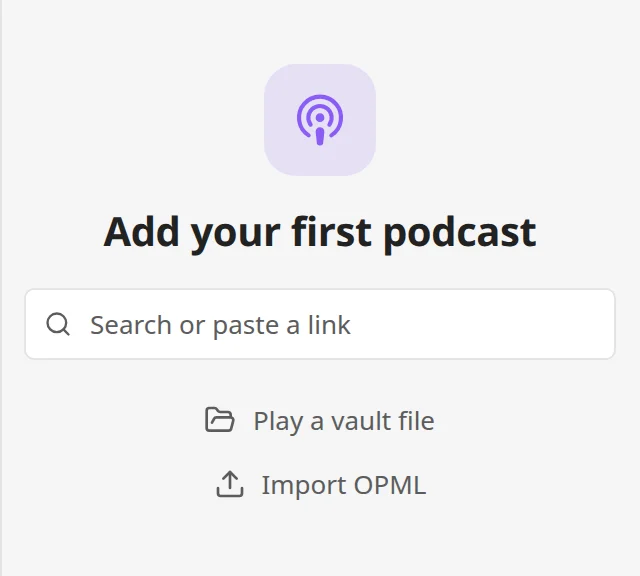
- In the search field, type a show’s name. Results appear as you type.
- Select the show you want.
PodNotes adds the show and opens its page, which lists its episodes.
You can also paste the show’s RSS feed URL or its Apple Podcasts link into the search field. One result then appears. If a show does not appear, see Which podcasts can I add?
Play an episode
Section titled “Play an episode”- On the show’s page, select an episode.
The episode starts, and the full player opens over the view. Select Play or Pause to pause and play again. To see your lists again, select Collapse player, the down arrow at the top left. The episode keeps playing in the mini player at the bottom of the view. Use the player covers every control.
This clip searches for “archive”, adds Notes from the Archive, and plays its first episode:
Create an episode note
Section titled “Create an episode note”- In the full player, select Create note, beside Timestamp.
PodNotes creates the note in PodNotes/ with the episode’s date, a link to its podcast, and a link that resumes playback. Except on a phone, the note opens next to the PodNotes view. The button then reads Open note. To change what a new note holds, see Change what notes contain.
Capture a timestamp
Section titled “Capture a timestamp”- In the episode note, in editing view, place the cursor where you want the timestamp.
- Run PodNotes: Capture Timestamp from the command palette. Timestamp in the full player does the same.
PodNotes inserts the playback time as a link, and a notice says “Timestamp added to” and the note’s name:
- [00:12:41](obsidian://podnotes?...)Select the link, in Live Preview or reading view, to play the episode from that moment. Capture works the same in any note. To take the timestamp back before you type more, select Undo in the notice. See Undo a capture.
Other ways to install
Section titled “Other ways to install”To try a beta version before it reaches Community plugins, install PodNotes with BRAT:
- Install the BRAT plugin.
- In Settings → Community plugins, turn on BRAT.
- Run BRAT: Plugins: Add a beta plugin for testing (with or without version).
- Enter
chhoumann/PodNotes. - Select Add plugin.
- If PodNotes is not turned on afterwards, turn it on in Settings → Community plugins.
To install a release by hand:
- From the latest release, download
main.jsandmanifest.json. - In your vault, put both files in
.obsidian/. Create the folder if it does not exist.plugins/ podnotes/ - In Settings → Community plugins, select Reload plugins.
- Turn on PodNotes.
Next steps
Section titled “Next steps”- Use the player with chapters, the transcript, and the queue.
- Capture timestamps from a hotkey, a phone toolbar, or a headset.
- Create episode notes with your own template, and browse them with Bases.
- Use PodNotes on your phone.