
Use PodNotes on your phone
Listen and capture timestamps on your phone or tablet. You open the player yourself, and you capture from the command palette or from a button in the editor toolbar. To install PodNotes, follow Install PodNotes. The steps are the same on a phone. If your vault syncs from another device, a private podcast needs its address on the phone once. See Use a private feed on another device.
Open the player
Section titled “Open the player”On a new install, PodNotes opens its view once. After that, PodNotes opens the view only when you do, and Obsidian keeps the layout you left. To open it:
- Pull down on a note to open the command palette.
- Run PodNotes: Show player.
You can also open the menu from the three-line button in the navigation bar at the bottom of the screen, and select Show PodNotes. If PodNotes is already in your layout, swipe left from the right edge to open the sidebar, then select Podcast Player in its view picker. The PodNotes view opens in the right sidebar. When you use the command and an episode is loaded, the full player opens in it. To see your lists, select Collapse player, the down arrow at the top left. To return to your note, select outside the sidebar.
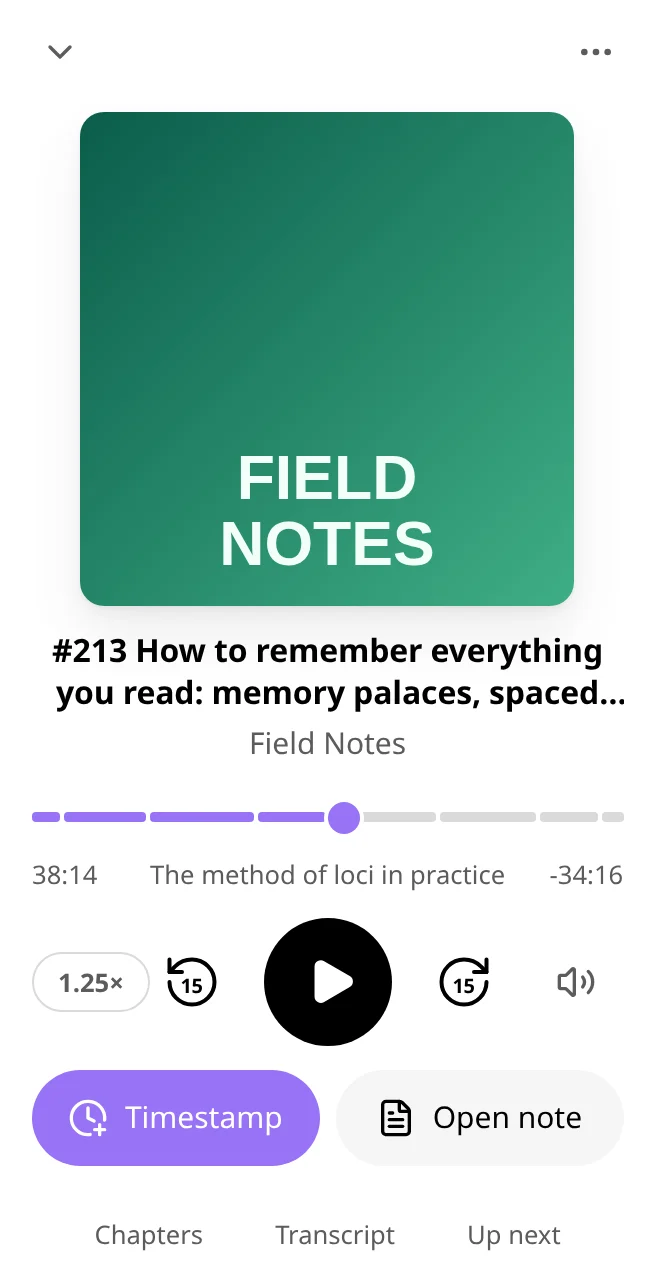
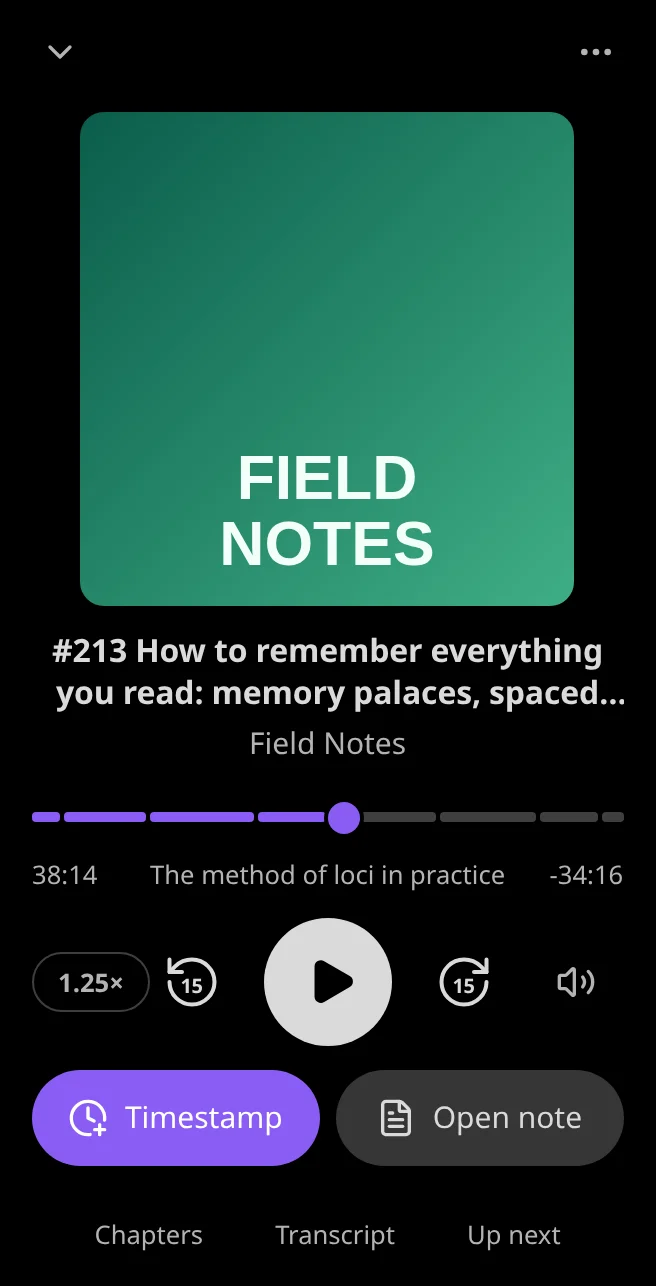
The full player works as on a computer. See Use the player. The Queue page works by touch too. See Reorder the queue. To add your first podcast, see Add and play podcasts. Most commands appear only while an episode is loaded. When Obsidian starts, PodNotes restores the episode you played last, paused, so these commands work before you open the view. See Commands.
Add a capture button to the editor toolbar
Section titled “Add a capture button to the editor toolbar”Set up the button once
Section titled “Set up the button once”- In Settings → Interface, select Configure mobile toolbar.
- Select Add a command… under Manage toolbar options.
- Find and select PodNotes: Capture Timestamp. Its button shows a clock.
To add a range button, repeat steps 2 and 3 with PodNotes: Capture Last 10 Seconds or PodNotes: Capture Last 20 Seconds.
Capture from the toolbar
Section titled “Capture from the toolbar”- In PodNotes, play an episode.
- Select outside the sidebar to return to your note.
- In editing view, place the cursor where the timestamp goes.
- In the editor toolbar, select the clock button.
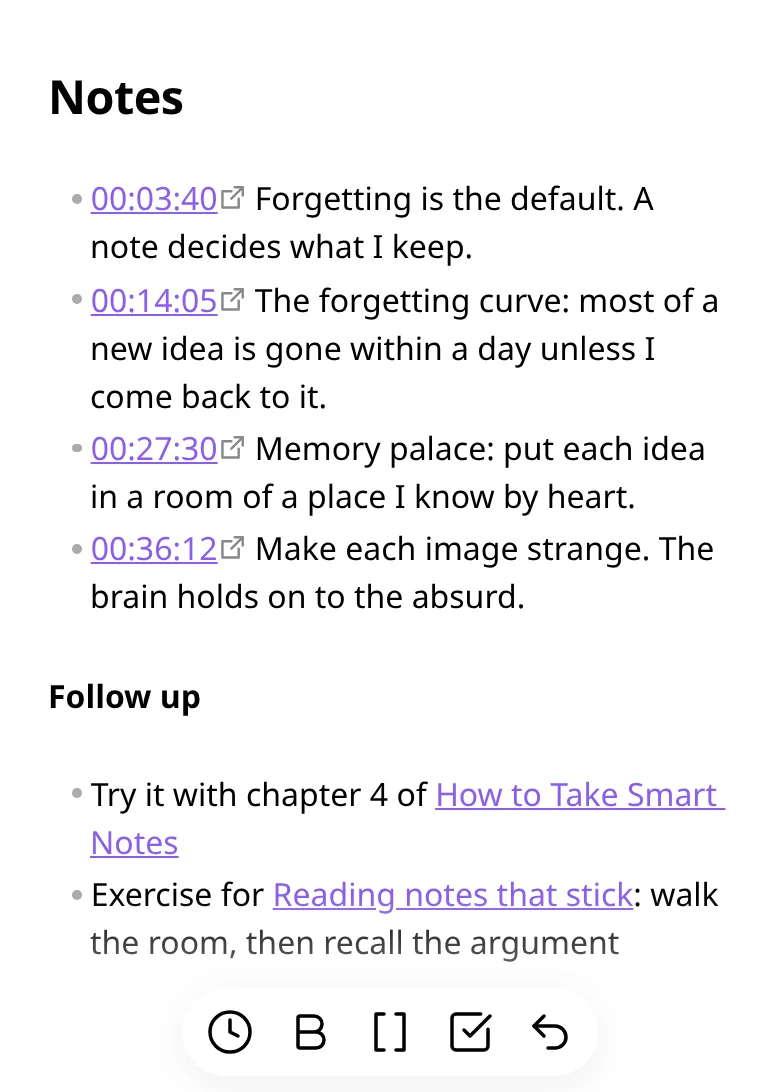
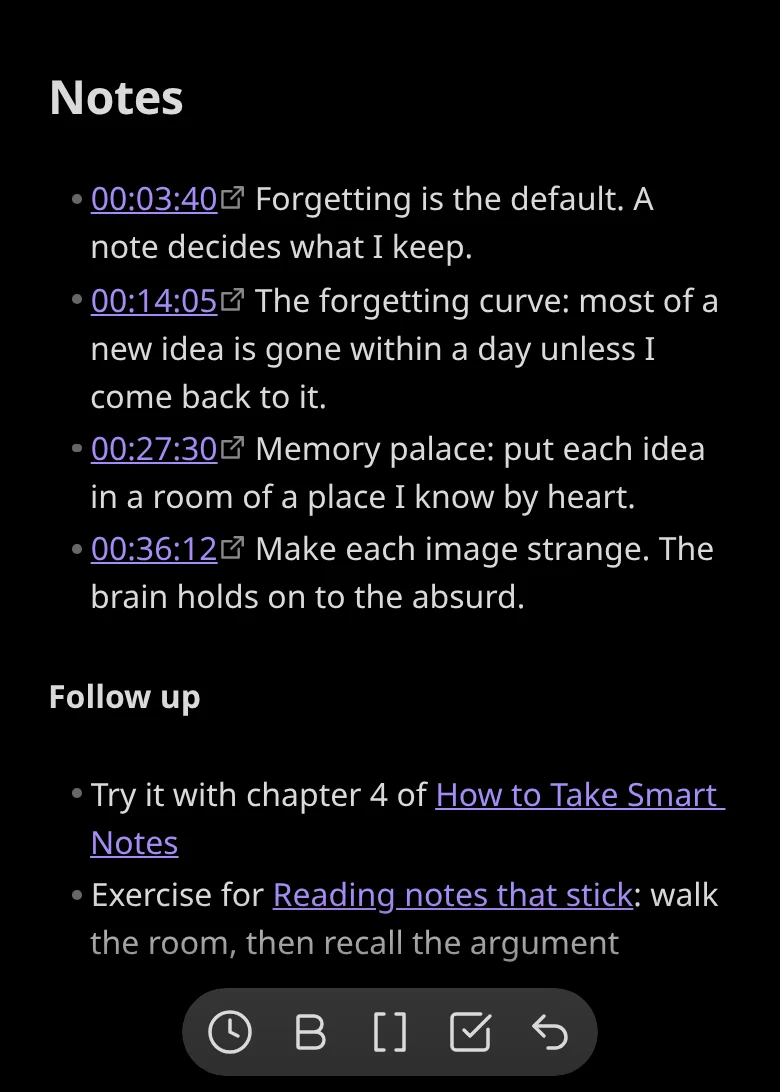
PodNotes inserts a timestamp link at the cursor and shows a notice with Undo, or shows “Play an episode to capture” when no episode is loaded. If your timestamps come out as plain text, see Make timestamps clickable.
Control playback from a headset or the lock screen
Section titled “Control playback from a headset or the lock screen”On Android, Obsidian does not pass headset buttons or lock screen controls to PodNotes, so they do not work there. To capture on Android, use a capture button in the editor toolbar. On an iPhone or iPad, the controls should work as on a computer, but they are not tested yet.
On a computer, these controls work while an episode is loaded, playing, or paused:
| Control | What it does |
|---|---|
| Play and pause | Plays or pauses the episode. |
| Skip backward and skip forward | Moves by Skip back (s) or Skip forward (s), 15 seconds by default. |
| Next track | Moves forward by Skip forward (s), unless you choose another action. |
| Previous track | Captures a timestamp, unless you choose another action. |
| A point on the system’s progress bar | Jumps to that point. |
To choose what the track buttons do:
- Open Settings → PodNotes.
- Under Headset and lock screen, set Previous track and Next track.
Previous track can capture a timestamp, go back by the skip length, or go to the previous chapter. Next track can go forward by the skip length, play the next episode in the queue, go to the next chapter, or capture a timestamp. A chapter action does nothing for an episode without chapters. Next in queue plays the queue’s next episode. With the automatic queue on, the episode it leaves goes to the end of the queue, not the top, so each press moves on through the queue.
The lock screen and your system’s media controls show the episode’s title, the podcast’s name, and the artwork. Which press sends which control depends on the headset. A triple press often sends previous track, and some headsets send none.
A capture from a headset goes where a capture command goes, and shows the same notice in Obsidian. That is the note you are editing. Otherwise it is the last note you edited, if it is still open in editing view. Otherwise it is the end of the episode’s note. See Choose where a timestamp goes.
Download an episode
Section titled “Download an episode”Download episodes while you are online, and wait for the notice that says each download succeeded. On a phone, the episode menu opens from the three-dot button at the end of an episode’s row. See Download an episode.
If the episode is playing when its download finishes, it keeps playing without a break. PodNotes plays the downloaded file the next time it loads the episode. Offline, the view shows Offline at the top and splits lists into Available offline and Needs a connection. See Listen offline.
Play your own audio and video
Section titled “Play your own audio and video”Long-press a media file in the file explorer, where a computer uses a right-click. See Play your own audio and video.
Limits on phones
Section titled “Limits on phones”- A file that plays on a computer can fail on a phone that lacks its codec.
- On Android, headset buttons and lock screen controls do not reach PodNotes.
- API keys and the private feed addresses that PodNotes recognizes stay on each device, so add them on your phone too. See Use a private feed on another device.
- A download made on another device plays only after its media file syncs to this one. See Downloads on another device.
- Before you switch to your phone, pause on your other device and let sync finish. A paused player on the phone then moves to the synced position, unless you moved its position and PodNotes has not saved the move yet. An episode that ended on the phone plays from the synced position, if it is before the end, when you play it. See Use PodNotes on two devices.